
Project management for construction and infrastructure in Salesforce
Many sites, many phases, one view of delivery.
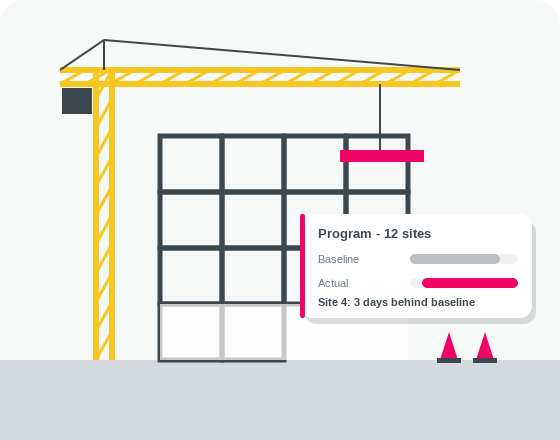
Builders, developers and infrastructure teams run dozens of concurrent projects through entitlement, engineering and construction. Inspire Planner tracks every one against its baseline, in Salesforce.
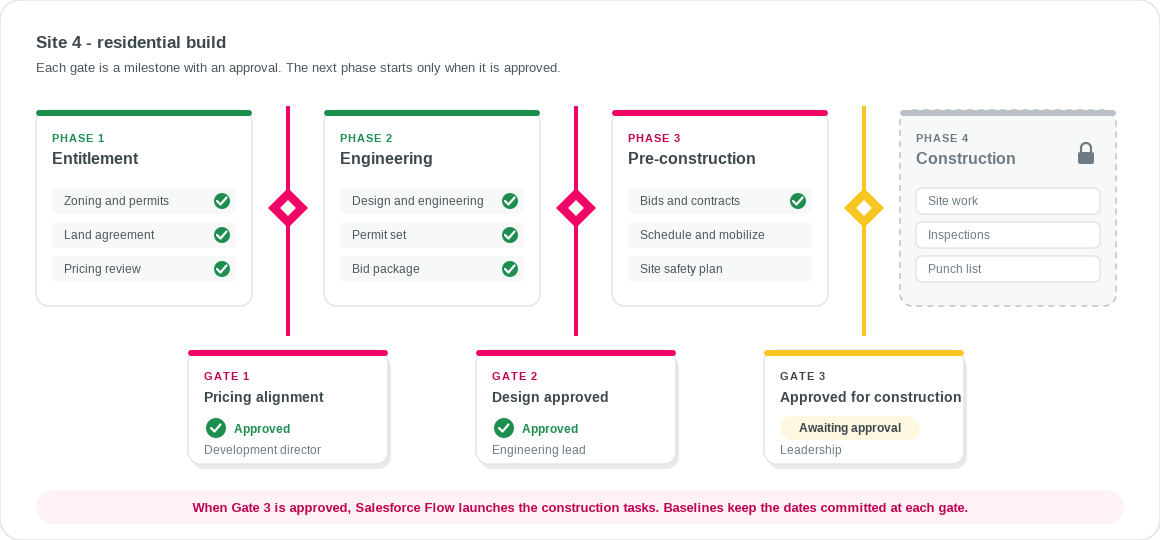
From approval to handover
The stages most builders and developers run each site through. Your gates may sit elsewhere; the structure carries over.
- PHASE 1 Entitlement and approvals Land, zoning and internal approval gates.
- PHASE 2 Engineering Design, permits and bids.
- PHASE 3 Pre-construction Contracts, scheduling and mobilization.
- PHASE 4 Construction Site work tracked against committed dates.
- PHASE 5 Handover Inspections, punch list and closeout.
Gate 1, Gate 2, Gate 3, approved on the record
Each gate is a milestone with its approval recorded on the project. Work for the next phase launches only when the gate is approved.
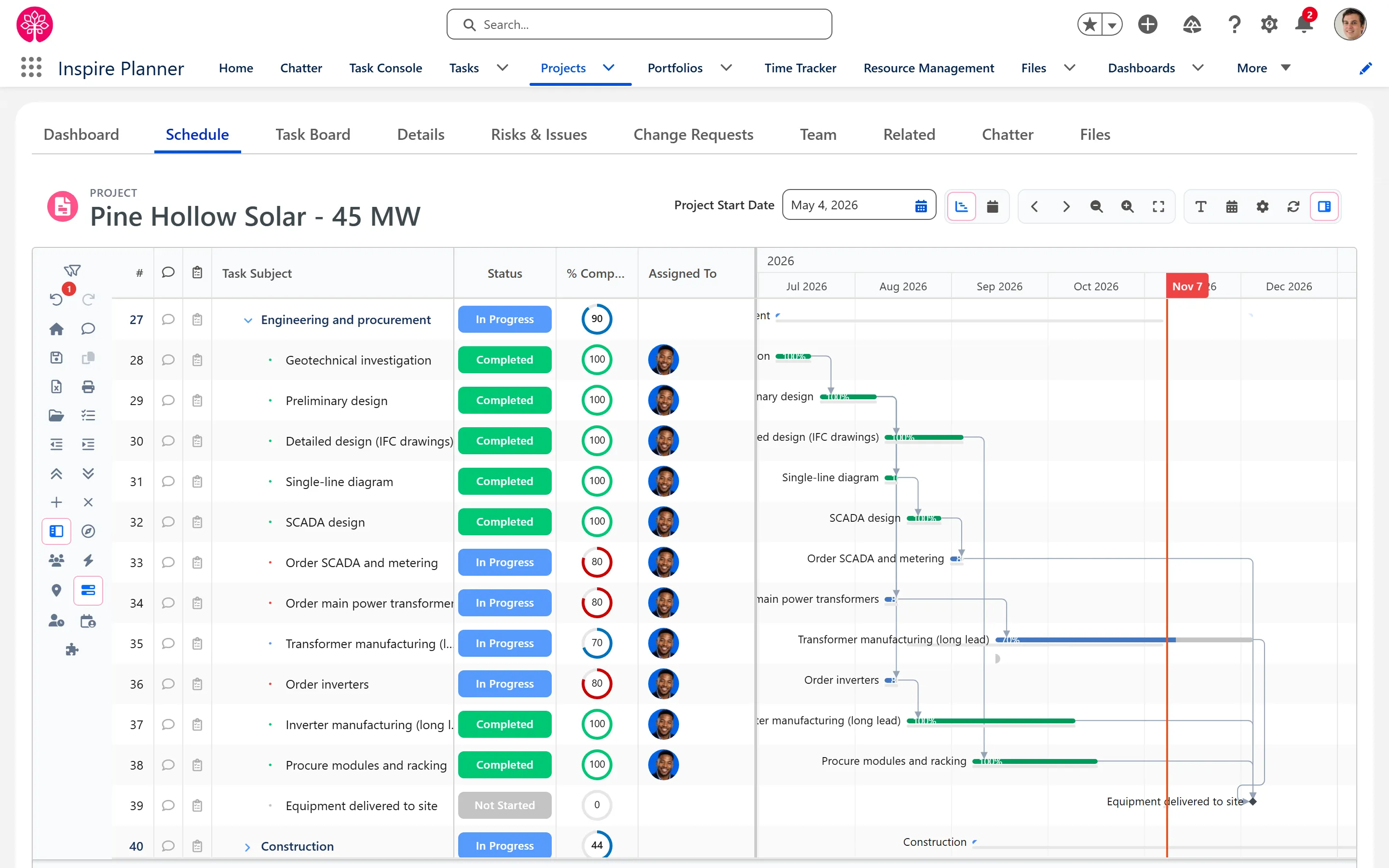
Each site on its own schedule, every site in one view
Baselines, gate approvals and contractor tasks in the Project Gantt, rolled up for leadership in the Portfolio Dashboard.
A residential or site project template
A simplified structure with approval gates.
External partners on the same schedule
Contractors and partners update their own tasks in Inspire Planner - External Portal 2.0, so site status is current without chasing.
"We were able to quickly and easily translate deep process and project knowledge from our operations team into simple templating that has set us up for success as we move forward."
Where construction & infrastructure teams start
The Product Areas that hold baselines, gates and site managers' workload together.
Questions from construction & infrastructure teams
Can we compare committed dates with actual delivery?
Yes. Baselines capture the committed plan and show slippage on every project.
What licenses do site teams and contractors need?
Team members need a Salesforce license, with Platform Starter as the minimum, and an Inspire Planner Contributor license. Clients, partners and contractors use Inspire Planner - External Portal 2.0 and need neither. Project and construction managers who build or change the plan use a Standard license.
Can approvals trigger the next phase?
Yes. Gate milestones and Salesforce Flow can launch the next set of tasks when an approval is recorded.
Can a large program be broken into sites?
Yes. Many teams run each site or measure as its own project with an owner, rolled up into one portfolio.
Can contractors update their tasks?
Yes. Contractors see and update the tasks you share with them in External Portal, with no Salesforce license and no per-user Inspire Planner fee.
See your gates in one plan.
Bring one site and its approval gates. We’ll build the plan around them in the demo.