
Platform Administration & Integration: Salesforce project management with no integration to build
Administer projects with the Salesforce tools you already run
Install, license, configure and automate Inspire Planner the Salesforce way, with the tools your admin already uses.
Your admin shouldn’t need a second system to manage
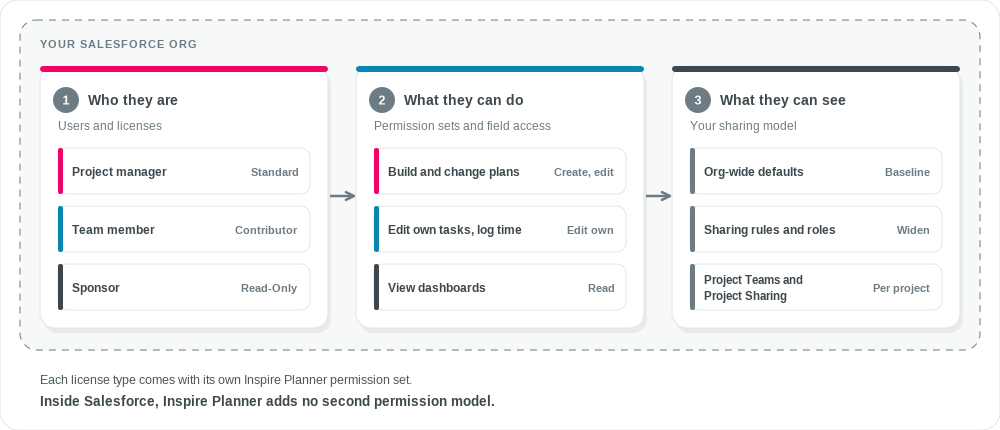
Inside Salesforce, Inspire Planner adds no second permission model, so administration happens where your admin already works.
Inside Platform Administration & Integration
Install, license, configure and automate with the tools your admin already uses. Part of the platform for every customer.
Licenses, permission sets and sharing: the model you already run
Inspire Planner adds no second permission model. Access to project data follows your licenses, permission sets and sharing rules.
Inspire Planner - External Portal 2.0 is hosted by Inspire Planner and connects to your org. See Security & architecture ›
Who uses Platform Administration & Integration
Each role maps to a license type. See license types and pricing ›
"Inspire Planner is a … Salesforce project management app with strong Gantt, dependency, and resource management features. It enables structured project execution directly within Salesforce …"
Admin questions
Does Inspire Planner use our security model?
Yes. Profiles, permission sets and sharing rules decide access to project data, so there is no second permission model to maintain.
Can we automate with Flow?
Yes. Flow and Apex work on project records, including creating projects from Opportunities. Advanced Scheduling Automation, coming to Premium+ and now in Private BETA with selected customers, lets them trigger the Gantt Scheduler too.
How often do upgrades arrive?
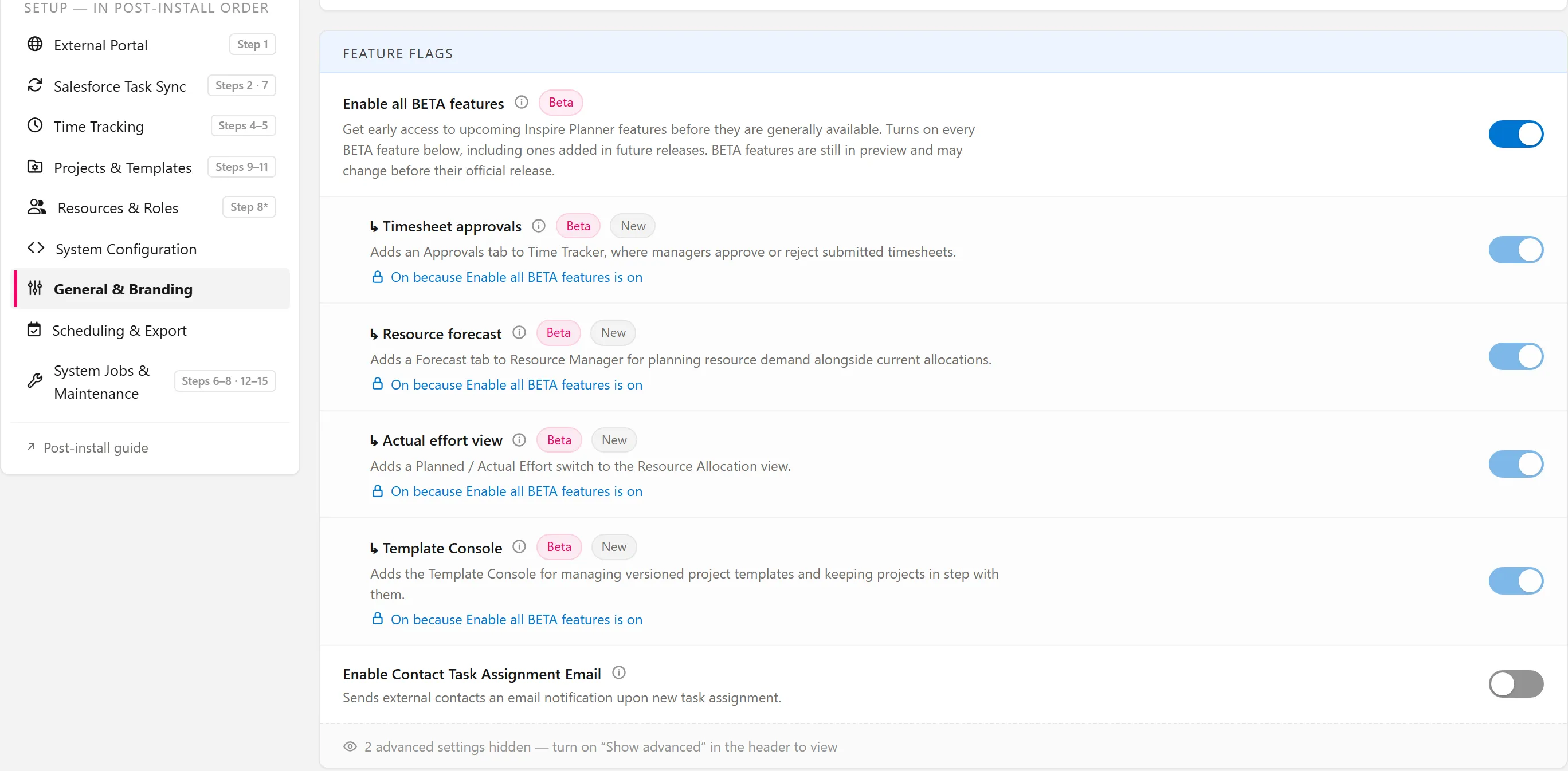
Three Major Releases a year, in March, July and November, with Maintenance Releases between them. New capabilities arrive Available - Opt-in, so you choose when to turn them on.
Do Salesforce tasks stay in sync?
Yes. Salesforce Task Synchronization keeps Salesforce tasks and project tasks in step, so sales and delivery see the same work.
We use the legacy Visualforce Gantt. Can we move?
Yes. Move from the legacy Visualforce Gantt to the Project Gantt, the screen every new 2.0 capability builds on.
See it installed in an org like yours.
Setup, permissions and Flow, walked through in Salesforce.