
Task Console: task management across every project in Salesforce
Your work, across every project.
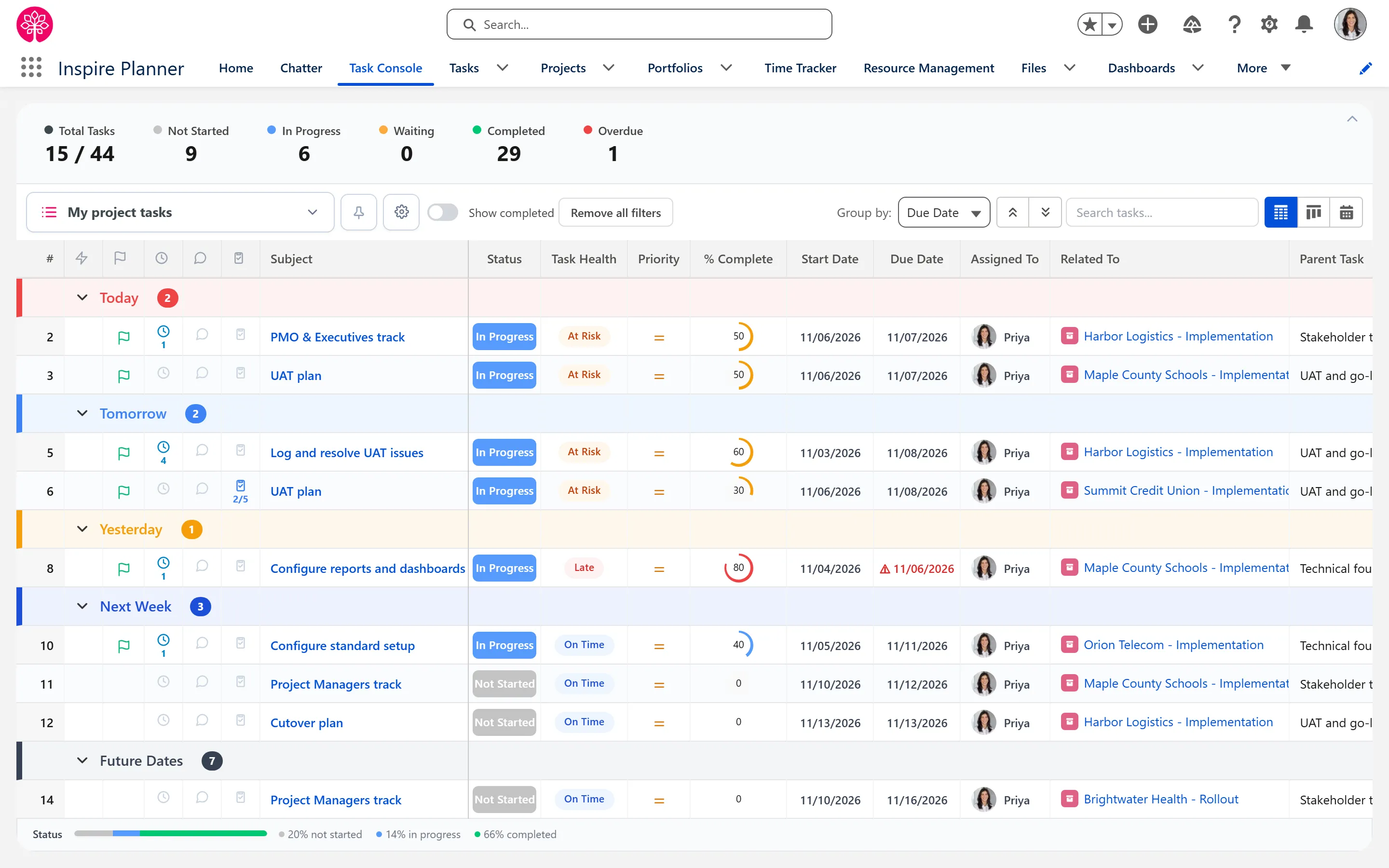
The daily workspace for team members: every task assigned to them, from every project. Tasks are Salesforce records, so status, time and Chatter stay on the project with no sync to maintain.
A day in the Task Console, not in the inbox
A project manager needs the Gantt. A team member needs to know what is theirs today, get it done, and let the project know without writing a status email.
- 8:30 Open my work Every task assigned to you, from every project, in one list. Two are ready to start.
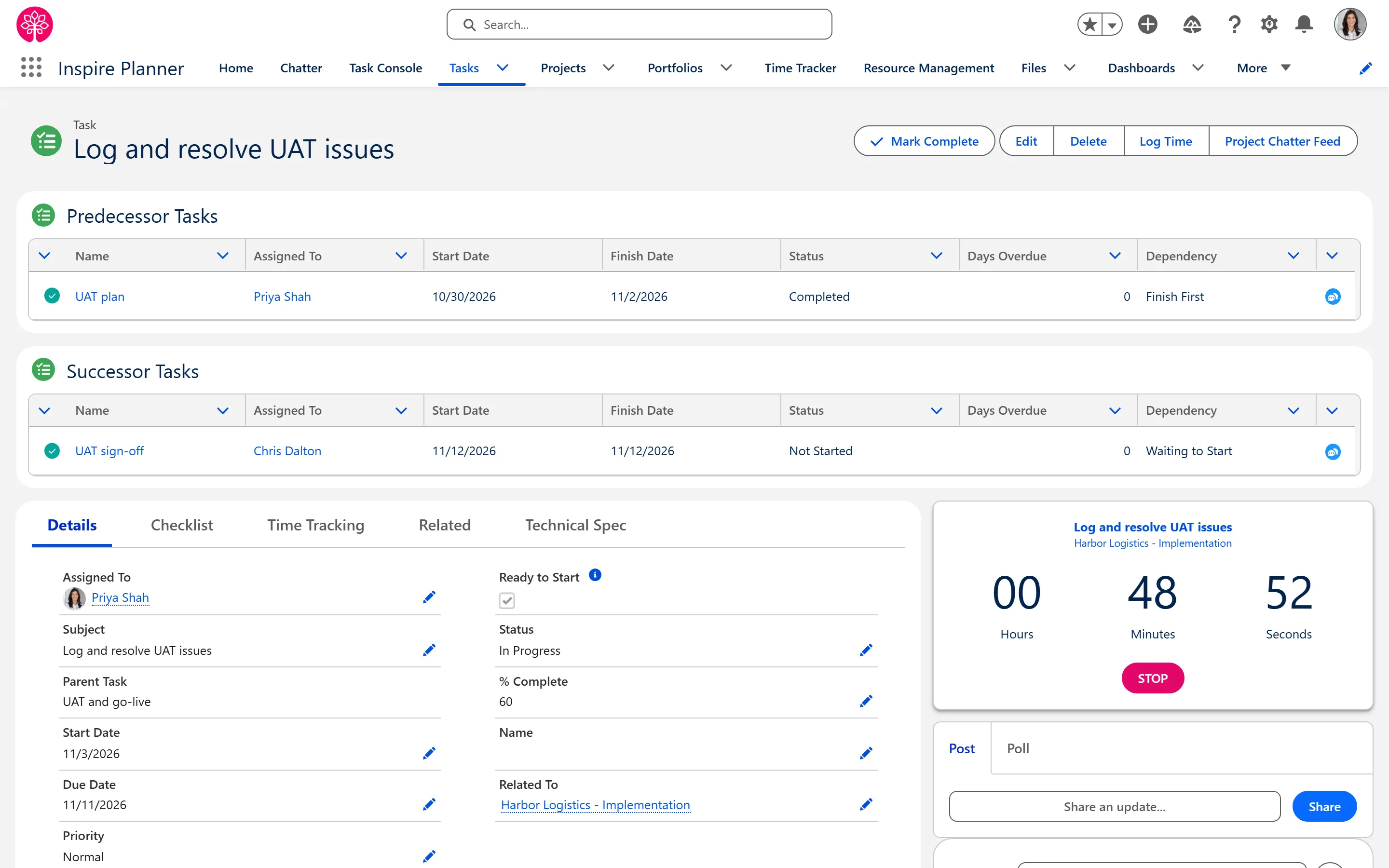
- 9:15 Work the checklist Tick off the steps inside the task. Progress shows on the plan as you go.
- 11:00 Start the Stopwatch Time logs to the task while you work, ready for this week’s timesheet.
- 14:00 Ask on the task A Chatter comment on the task, where the project manager already looks.
- 16:30 Mark it complete The Actual Finish Date fills in, and the plan and dashboards show it.
No status emails, no separate timesheet tool, no copying updates into the plan.
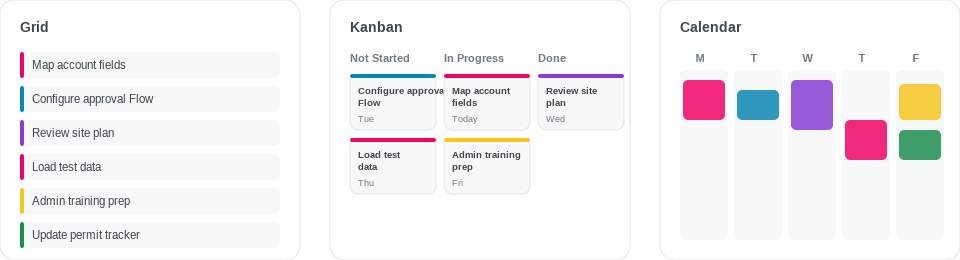
Grid, Kanban or Calendar. Same tasks.
Sort and filter in the grid, move cards on the board, or plan the week on the calendar. Every change lands on the same project data.
Group tasks by project, due date or status, and filter across every project, so the work that matters comes first.
Everything a team member needs, nothing they do not
Time logged on the task, timesheets built from it
Team members log time as they work, then prepare and submit a timesheet from the time already logged. Resource managers approve it.
Time Tracker and Stopwatch Timesheets prepared from logged time Approval by project or resource managers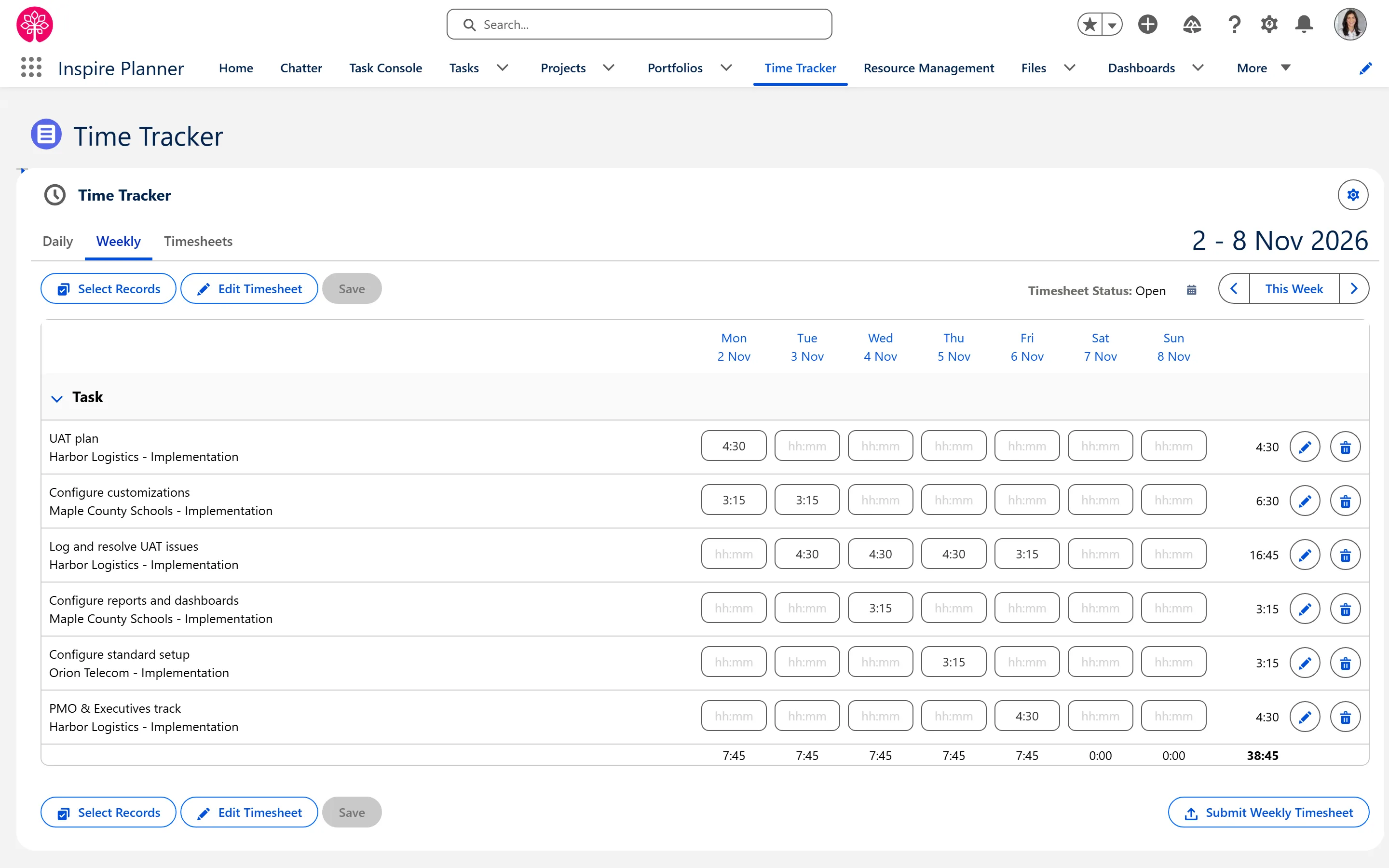
Every update lands on the plan and the dashboards
Status, checklist progress and time logged here show in the Project Gantt and on the Project Dashboard, then roll up to the Portfolio Dashboard. Nothing to sync, nothing to re-key.
"… a great project management tool for our teams. The Inspire [P]lanner is very intuitive …"
Questions about Task Console
What license do team members need?
A Contributor license. Contributors edit their own tasks in the Task Console and log time, vacation and PTO. They can’t create tasks or change dates, durations, dependencies or plan structure.
Does it work for Agile teams?
Yes. Agile projects have their own board, backlog and sprints, and the Task Console shows the work assigned to each person across all of it.
Can we change what the Task Console shows?
Yes. Your admin configures the Task Console for your teams.
Do team members see tasks from every project?
Yes. Every task assigned to them, from every project they work on, in one list.
Does completing a task change the schedule?
No. Completing a task fills in its Actual Finish Date without moving its dates, and changing an assigned resource never reschedules the plan.
Can team members see their Salesforce tasks here too?
Yes. The Salesforce Task View brings related Salesforce tasks alongside project work, so the day starts from one list.
See your team’s week in the Task Console.
We will show the Task Console with work from several projects, in Salesforce.