
Clients & Partners New in 2.0

Inspire Planner - External Portal 2.0: a client portal for Salesforce projects

Keep customers and partners connected to delivery without another Salesforce license.

Your client doesn't have to learn your project structure. They open Inspire Planner - External Portal 2.0, see their work, and update it. No Experience Cloud site to build. No license for every client contact.
4.95/5 from 175+ reviews on AppExchange
Part of the Clients & Partners track ›
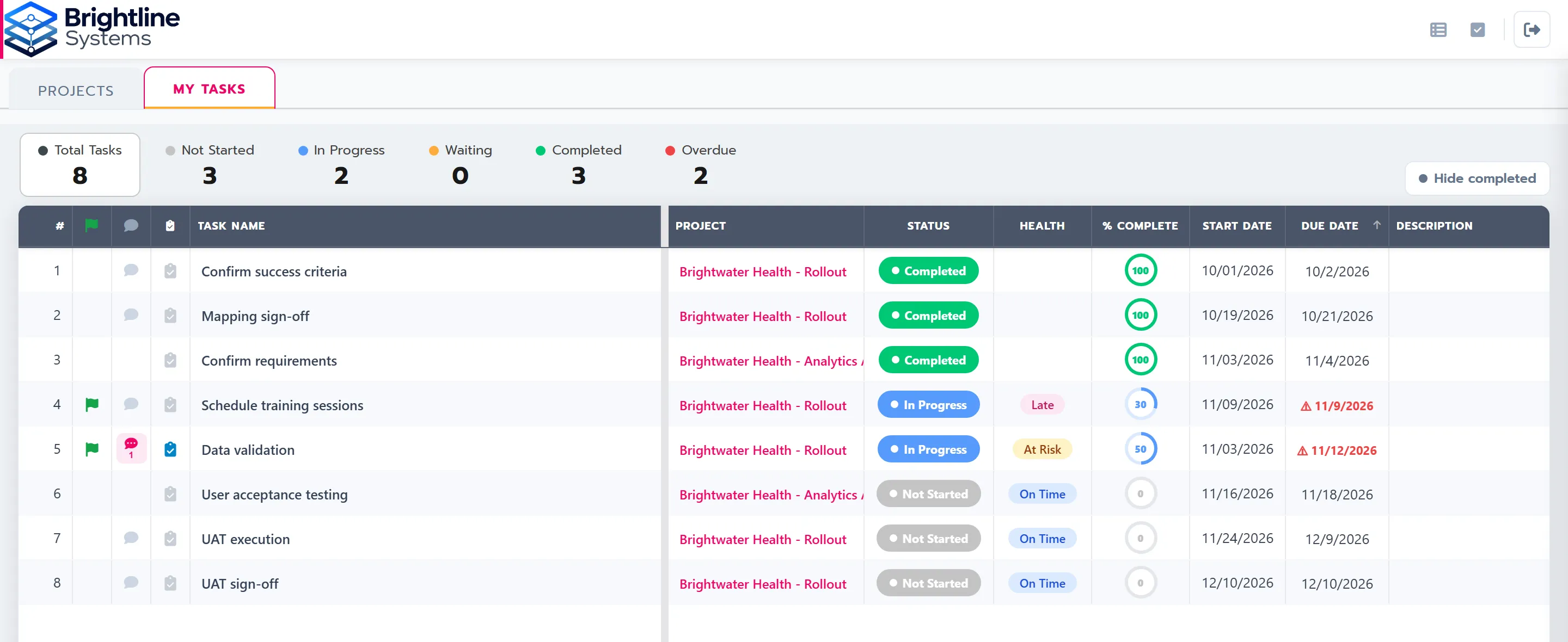
The client's My Tasks in the External Portal: 8 tasks across the two Brightwater Health projects with totals (3 not started, 2 in progress, 3 completed, 2 overdue), each task's project, status, health, percent complete and dates.

The project lives in Salesforce. Your customer needs a view of it.

Every onboarding, implementation and program has people outside your org who own tasks: the customer who has to sign off a configuration, the contractor who has to finish the install, the partner who owns the training. Today they usually get the plan as a PDF and send updates by email, and someone on your team re-keys each one.

Inspire Planner - External Portal 2.0 gives them their own view of the same project: the tasks assigned to them, the schedule they are part of, and the ability to update their own work. The project manager sees the update in Salesforce the moment it happens. There is nothing to re-enter.

YOUR VIEW, THEIR VIEW

Same project. Two views.

You plan and run the whole project in Salesforce. Your client sees only the tasks and schedule you share with them, and every update they make lands on the same project.
YOUR TEAM, IN SALESFORCE
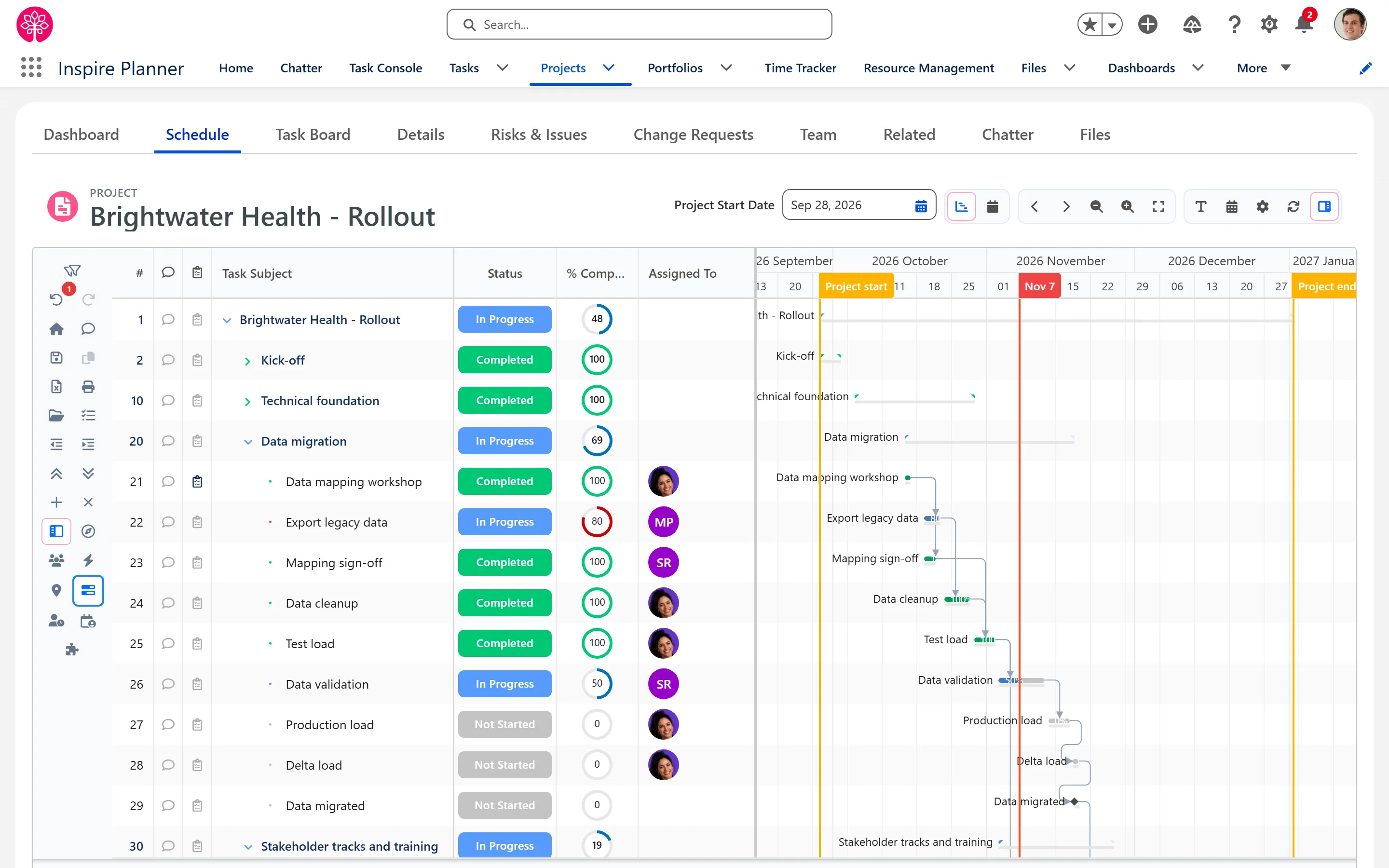
Project Gantt for the Brightwater Health - Rollout project: phases and tasks with assigned team members, dependency lines, a milestone, baseline bars and today's date marked.
The full plan in the Project Gantt: every phase, task and dependency.
YOUR CLIENT, IN EXTERNAL PORTAL
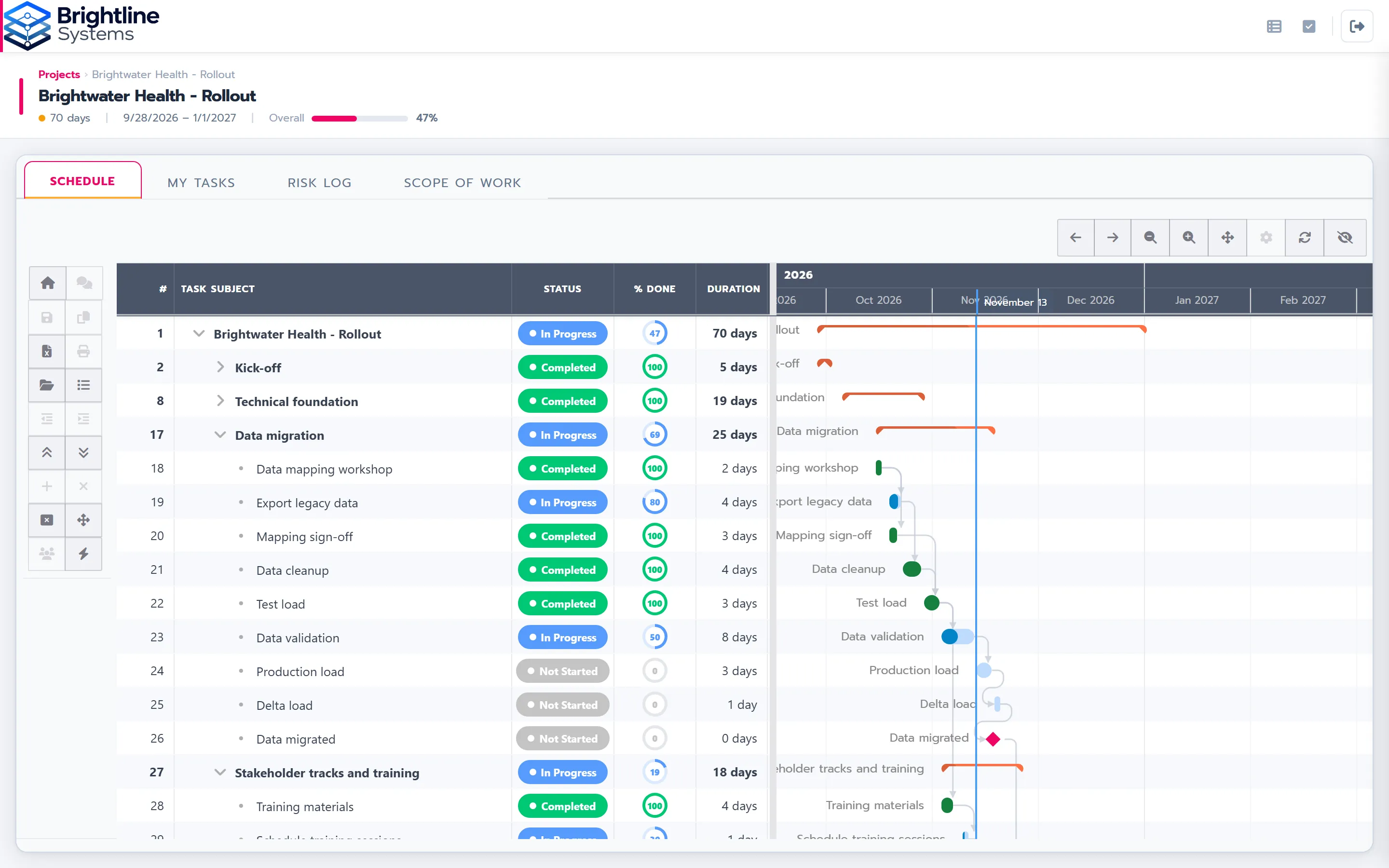
Brightwater Health - Rollout schedule in the External Portal: completed Kick-off and Technical foundation phases collapsed, the Data migration tasks with status, percent done and Gantt bars linked by dependencies, and a today line on November 13.
Their own tasks across projects, and the schedule. No Salesforce license.
HOW IT WORKS

Three steps from project to client view
1 Add the contact to the project Your customer, partner or contractor is a Salesforce Contact on the project team. No user record, no Salesforce license.
2 Assign them tasks in the plan The tasks they own sit in the Project Gantt with everyone else’s. Dates, dependencies and status stay in one schedule.
3 They work in External Portal They open External Portal, see their tasks and the schedule, and update their own work. The project manager sees it in Salesforce at once.
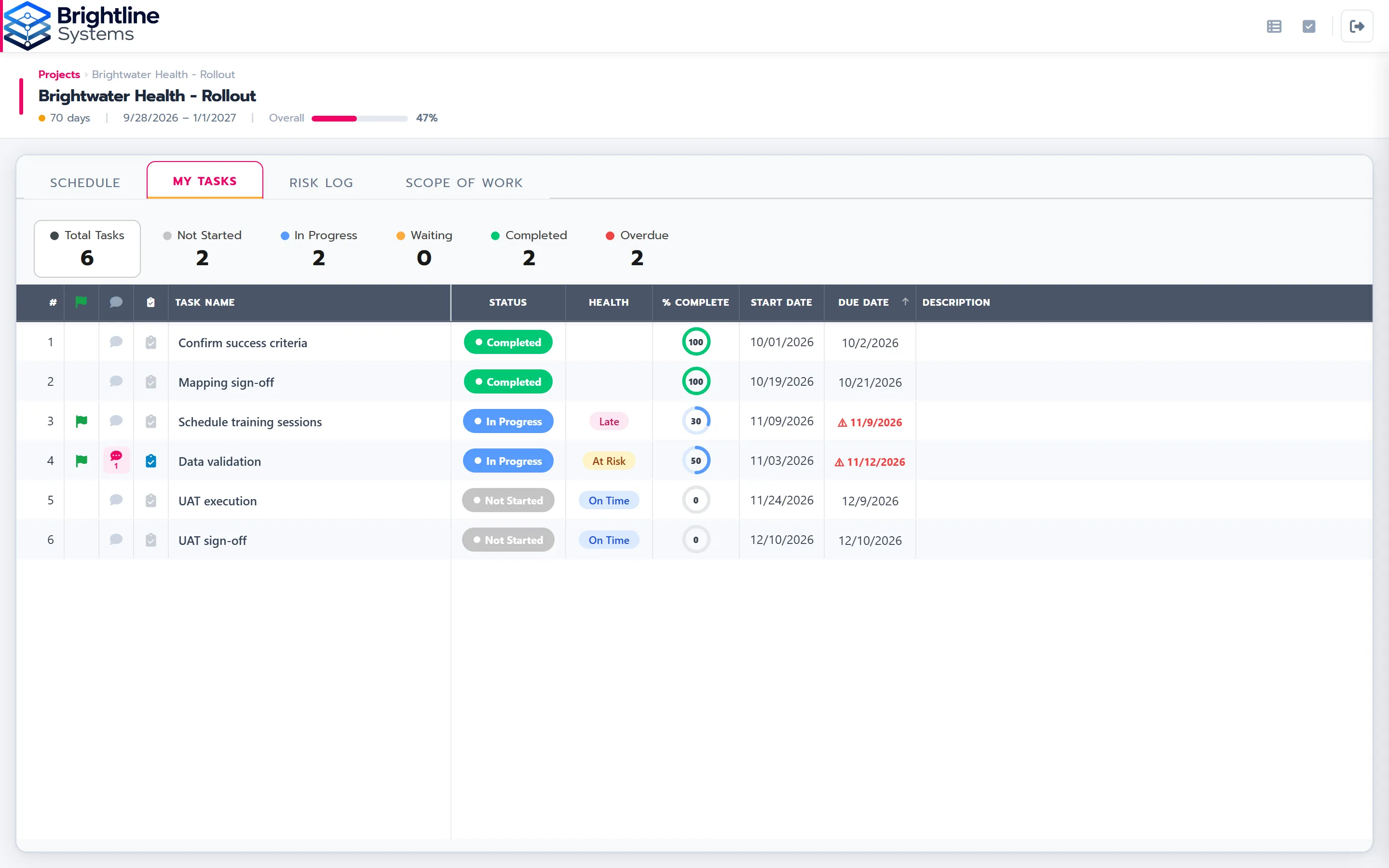
The Brightwater Health - Rollout project in the External Portal as the client sees it, on the My Tasks tab: his six tasks on this project with status, health, percent complete and due dates.
External Portal My Tasks
INCLUDED IN THE PLATFORM

What every external user gets

Included for every Inspire Planner customer. No per-user fee for external users, no Salesforce license.

External Portal My Tasks One list of every task assigned to them, across every project they are part of, with summary tiles and inline updates to status and % complete.
Project schedule The schedule they belong to, read in context: what comes before their work, what depends on it, and when.
Their own updates Status and % complete on their own tasks, with a health pill (On Time, At Risk, Late) on each. The project manager sees the update in Salesforce the moment they save.
Only what you share External users see the projects and tasks you give them access to, and nothing else in your org. Mark any task Internal Only and it never reaches External Portal.
Premium+ Advanced External Collaboration adds External Portal Task Chat, External Portal File Sharing, External Portal Checklist Items, External Portal Custom Object Tabs and External Portal Login Branding.
See Premium+ ›
TWO DIFFERENT THINGS

External Portal vs Experience Cloud

They are separate and never the same license. Most customers only need External Portal. Experience Cloud is for organizations that already run their own Salesforce Experience Cloud site and want Inspire Planner inside it.

Compared INSPIRE PLANNER - EXTERNAL PORTAL 2.0 EXPERIENCE CLOUD LICENSE
What it is Part of the Inspire Planner platform. An experience hosted by Inspire Planner for your customers, partners and contractors. A separate paid Inspire Planner license for customers who run their own Salesforce Experience Cloud site.
Who it is for External people who own tasks on your projects. Your organization, when Inspire Planner should appear inside an Experience Cloud site you already have.
Salesforce license for the external user Not needed. Your Experience Cloud site and its Salesforce licenses are yours to provide.
Inspire Planner cost Included in the platform. No per-user fee for External Collaborators. Priced on request. Requires Premium+.
Setup Add the contact to the project and assign tasks. Build or extend your Experience Cloud site; separately scoped services.
Branding Inspire Planner login; your branding and domain with External Portal Login Branding (Premium+). Your Experience Cloud site’s branding.
Best for Customer onboarding, implementations, contractor programs, partner delivery. Enterprises with an existing customer or partner community that must stay in one place.

Experience Cloud is priced on request and requires Premium+. External Collaborators are included in the platform, with no Salesforce license. See pricing ›

"…the external project portal has been a complete paradigm shift in how we can communicate with and manage our external partners. … The contractor now has the ability to provide task-specific feedback via chatter, allowing specific task information to live (forever) in the project schedules."
Sean Draper King Energy Rated 5 out of 5.   AppExchange review, Sep 2026
FOR YOUR SALESFORCE ADMIN Where External Portal data lives and how it is secured The core platform is a managed package in your org. External Portal 2.0 is hosted by Inspire Planner. The security and architecture FAQ covers data location, authentication, what external users can and cannot see, and what your admin configures.
Read the security FAQ

Questions about External Portal

Do my customers and partners need a Salesforce license for External Portal?

No. External Collaborators don't need a Salesforce license and carry no per-user Inspire Planner fee. Inspire Planner - External Portal 2.0 is included in the platform.

How is External Portal different from Experience Cloud?

They are separate and never the same license. External Portal is part of the Inspire Planner platform and hosted by Inspire Planner. Experience Cloud is a separate paid license for customers who want Inspire Planner inside their own Salesforce Experience Cloud site; it is never the license for External Collaborators.

Where does External Portal data live?

The core Inspire Planner platform is a managed package in your Salesforce org. External Portal 2.0 is hosted by Inspire Planner on Heroku, a Salesforce company, in the United States. External Portal reads the projects and tasks you share live from your Salesforce org and doesn't keep a copy of your project data. It stores only what it needs to run: user accounts, sessions, the org connection, feature settings and logs. The security and architecture FAQ has the details.

What can an external user do?

See the tasks assigned to them in External Portal My Tasks, see the project schedule, and update their own work. Premium+ adds Advanced External Collaboration, such as task-level chat and file sharing.

What does an external user see when they log in?

Only what you share: their projects, their tasks and the schedule. With External Portal Login Branding (Premium+) they log in on your branded page and your own domain.

Can I try it?

Yes. Start a 30-day free trial from the AppExchange, or book a demo and we'll show External Portal on a project like yours.

Give your clients a view of their project.

Book a demo and we will show External Portal on a project like yours, in Salesforce.