
30-DAY FREE TRIAL
Try Inspire Planner free for 30 days.
Install Inspire Planner from AppExchange and run one of your own projects in it. We recommend a sandbox for your first install.
4.95/5 from 175+
reviews on AppExchange
BEFORE YOU INSTALL A Salesforce org: a sandbox or a Developer Edition is ideal Admin permissions to install a managed package One real project in mind to try it on About an hour for setup and your first project 
YOUR FIRST HOUR
Get to a real project, fast
Follow these steps after you install, in this order.
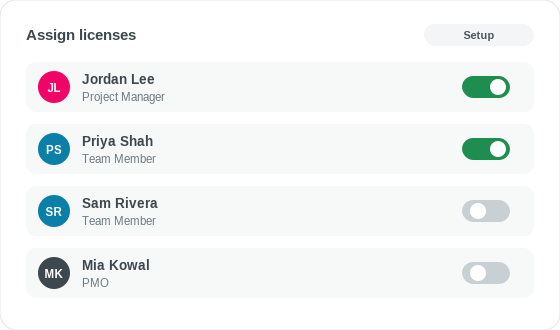
1 Assign licenses
Give yourself and one or two colleagues an Inspire Planner license in Setup. 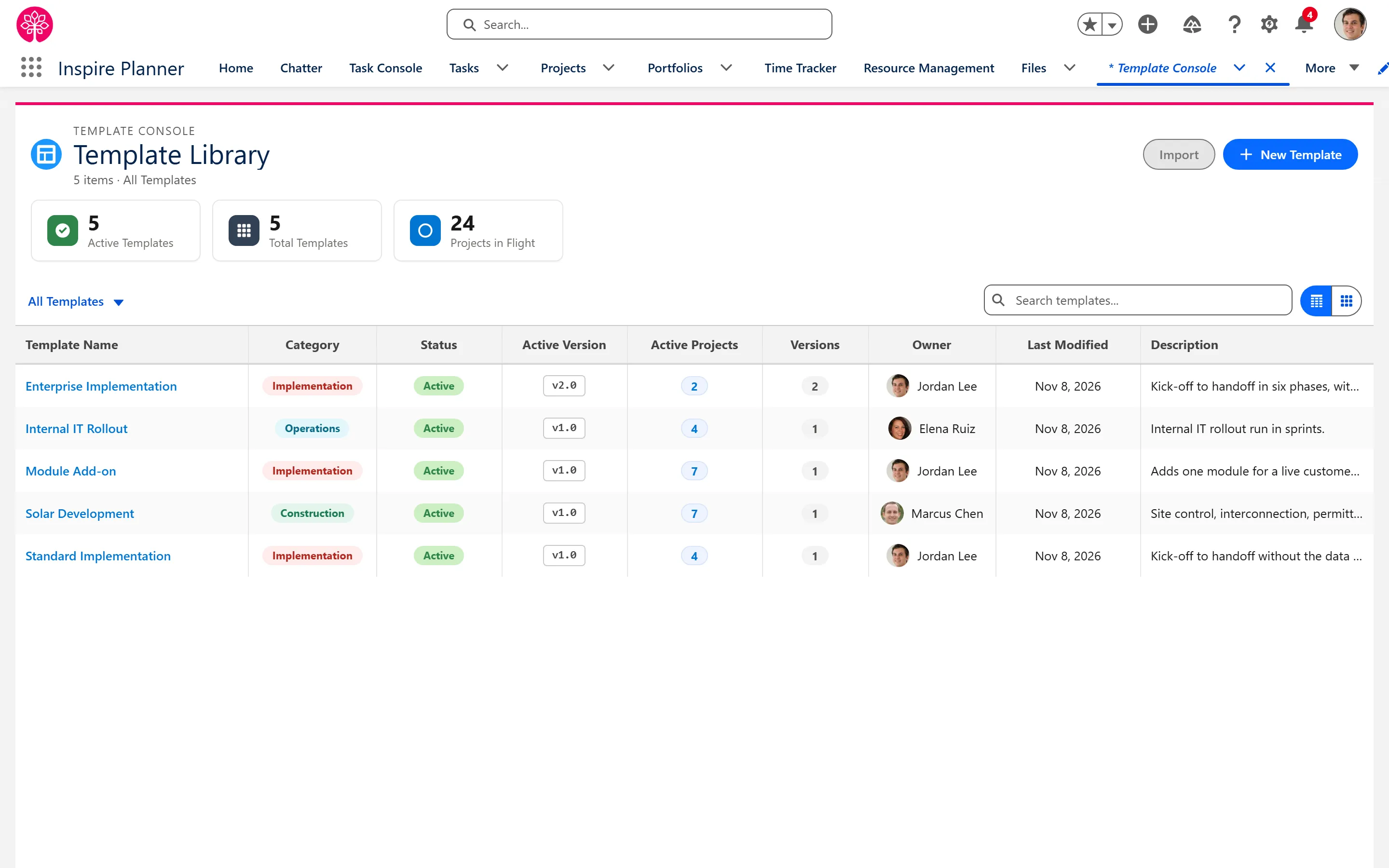
2 Create a project
Start from a template, or import a plan you already have. 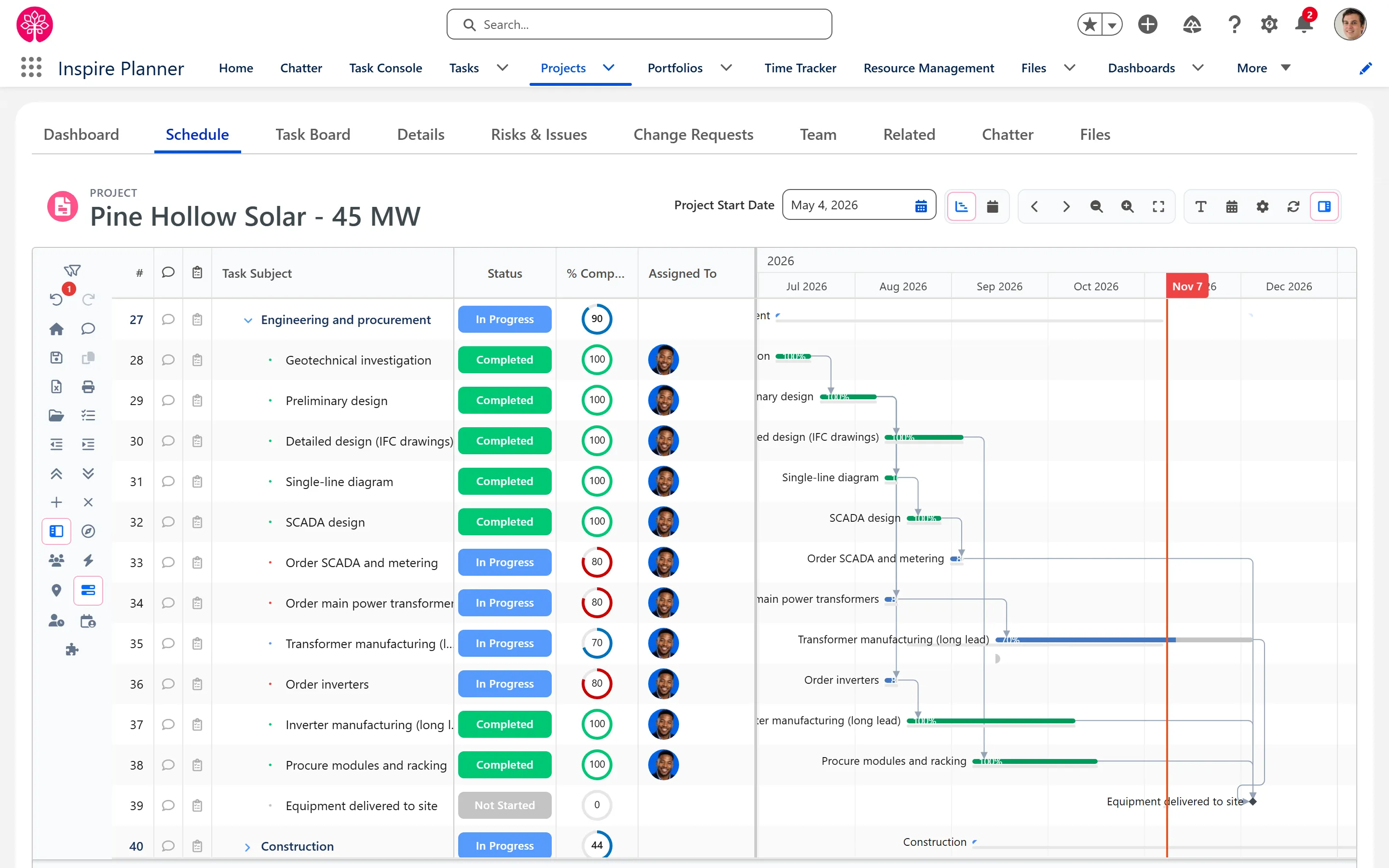
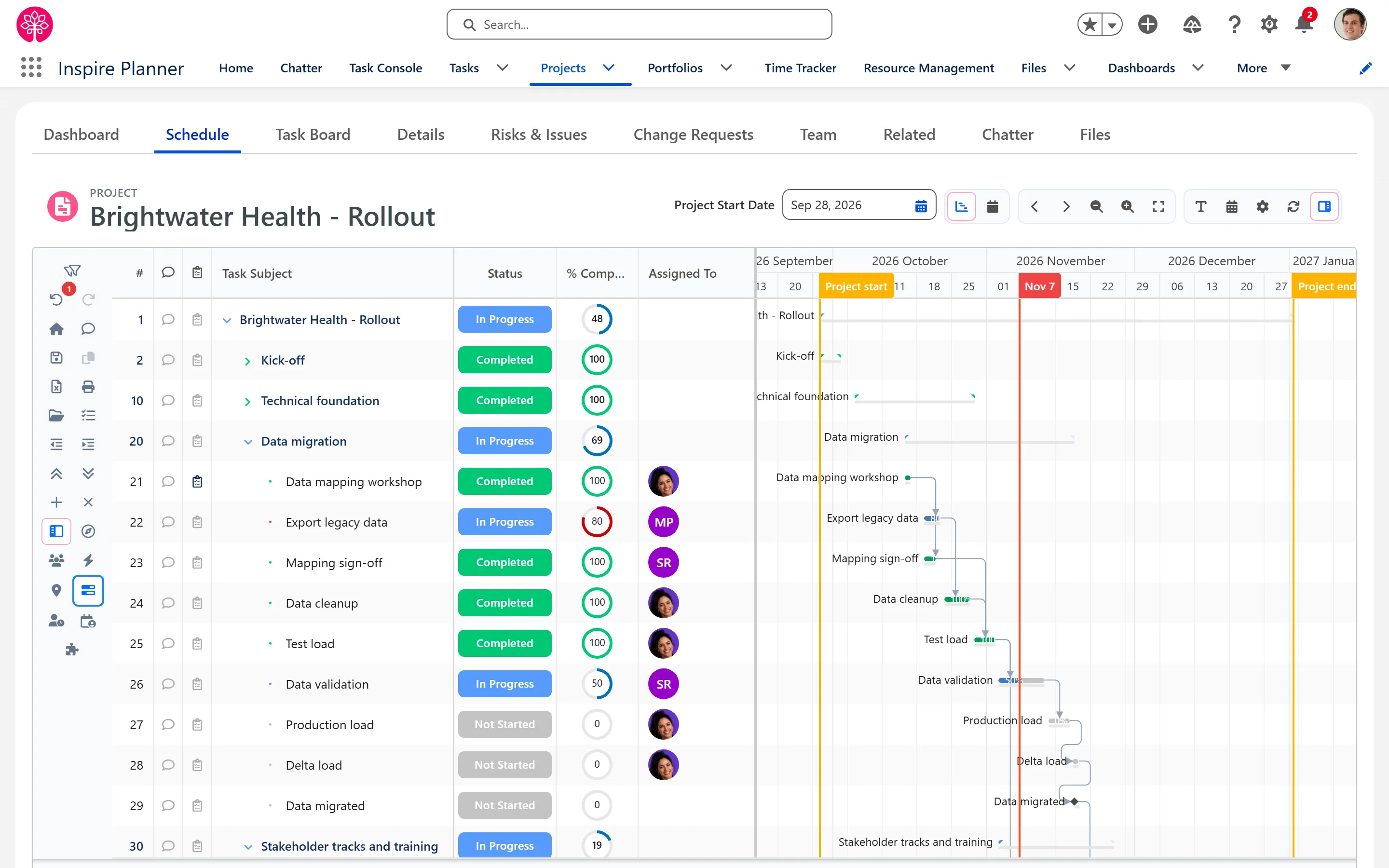
3 Plan it in the Project Gantt
Add tasks, dependencies and milestones, and set a baseline. 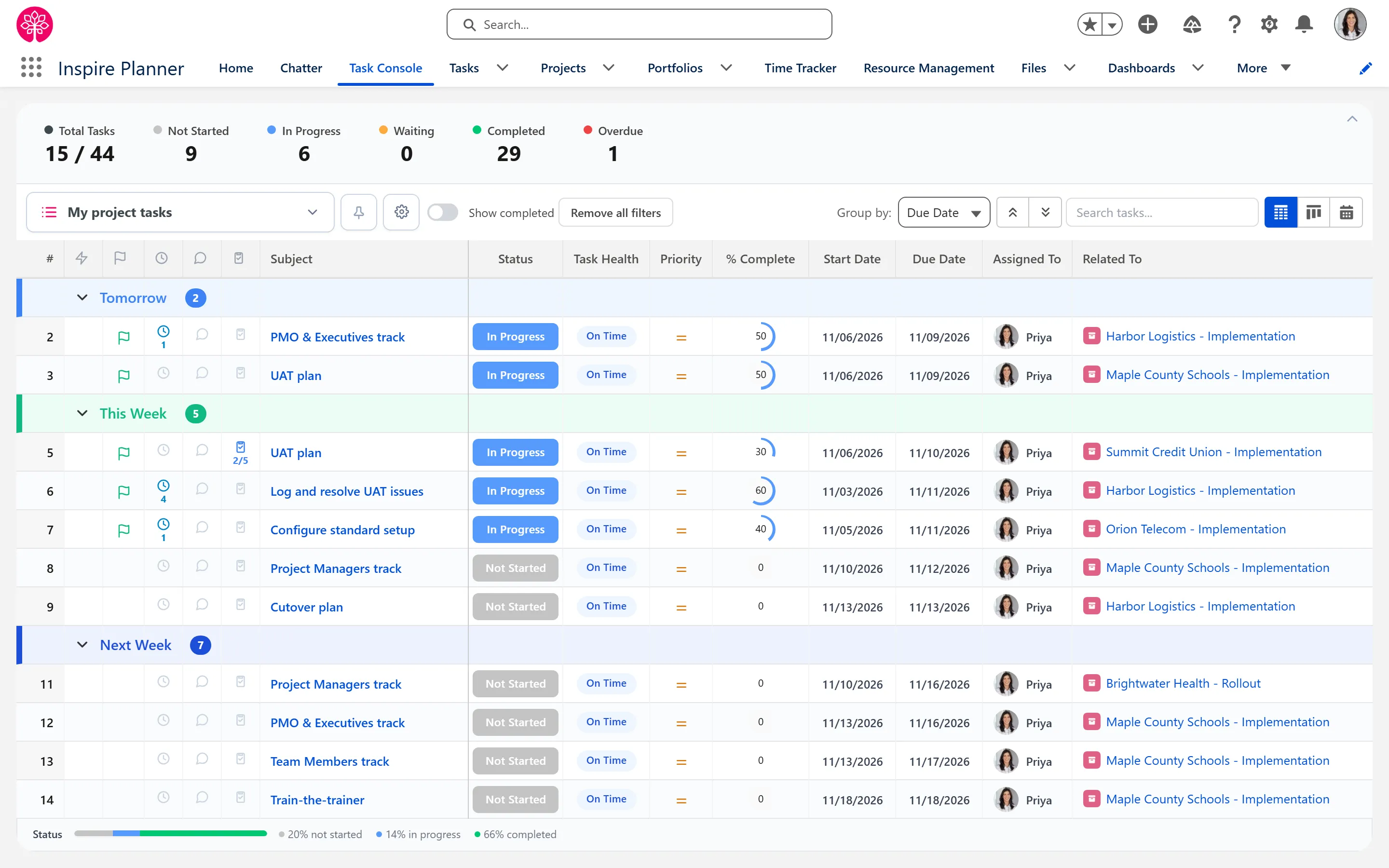
4 Work it in the Task Console
Have a colleague update their tasks and log time. Help Center Step-by-step setup articles and videos for every part of the platform. Open the Help Center ›
Book a walkthrough Prefer to be shown? Book a demo and we will walk you through your trial. Book a demo ›
Evaluation checklist Seven questions to check during your trial, including our answers. Download the checklist (PDF) ›
Questions about the trial
Is the trial free?
Yes. The trial is free for 30 days from install.
Can I install in production?
You can, but we recommend a sandbox for your first install so you can explore safely.
What happens when the trial ends?
Talk to us about licenses and onboarding. Every new customer starts with onboarding, run by the Inspire Planner team.
Can my clients use Inspire Planner - External Portal 2.0 during the trial?
External Portal runs in production orgs, not sandboxes. If you install the trial in production, your Salesforce admin can turn it on in the Inspire Planner settings. Trying it in a sandbox? Ask us to show it in your demo.
Want help with your trial?
Book a demo and we will walk you through it, in your org.